Using a smartphone
Use a mobile browser safely, distinguish viewing from phone tracking and verify the exact app, OS permissions and background behaviour currently supported.

A smartphone can serve two different purposes: viewing your devices or acting as a tracker itself. Do not confuse them—a browser or dispatcher app is sufficient for viewing, while coordinate transmission requires RealTimeTracker and Android permissions.
View in a mobile browser
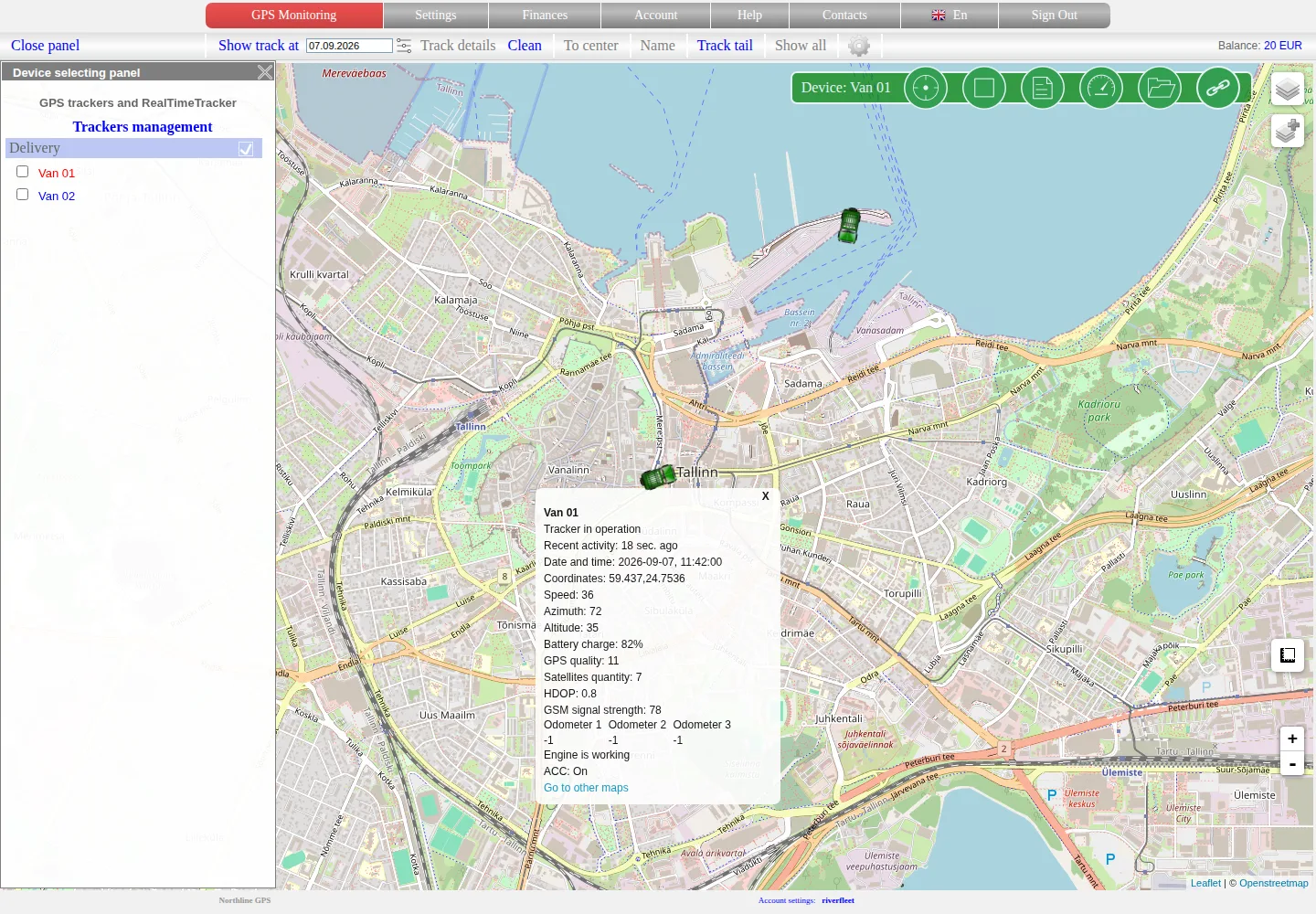
Open your hosting-site address in a modern browser and sign in. The map interface adapts to a narrow screen, where the device panel can occupy most of the width.
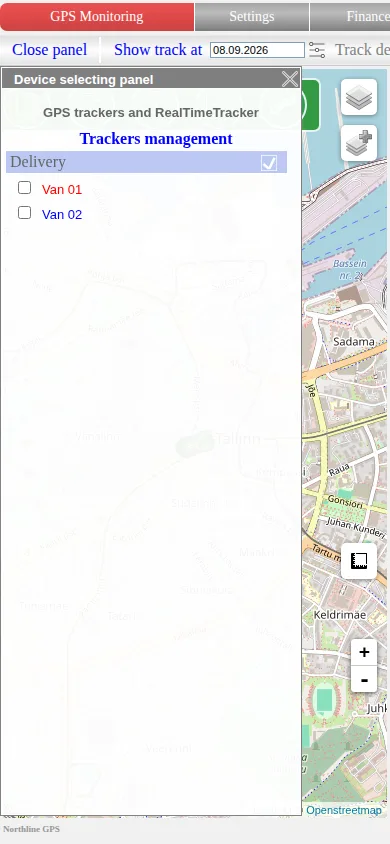
Select an object in the panel and then use the top link to close it and make room for the map.
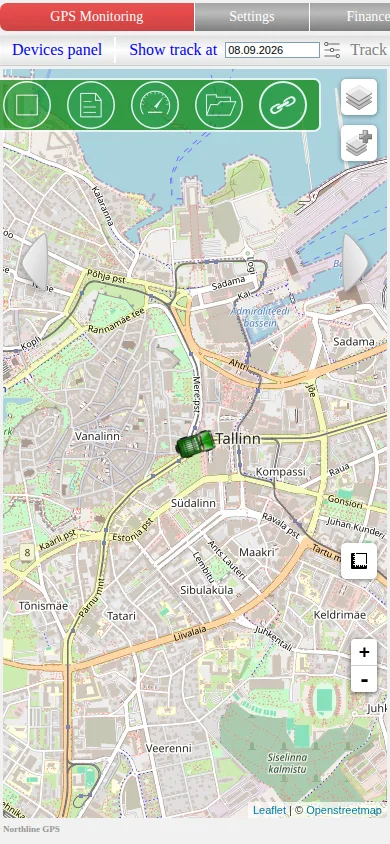
The compact state keeps the map, selected object and primary controls visible. The side arrows restore interface panels.
Do not save the password in somebody else's browser. Sign out after use; simply closing the tab can leave the session active.
Two Android applications
Open Settings → Android apps. The current hosting-site page provides two APK files:
- RealTimeTracker — the phone sends its own GPS coordinates to the service as a device;
- Mobile Dispatcher — displays and controls trackers already connected to the account.
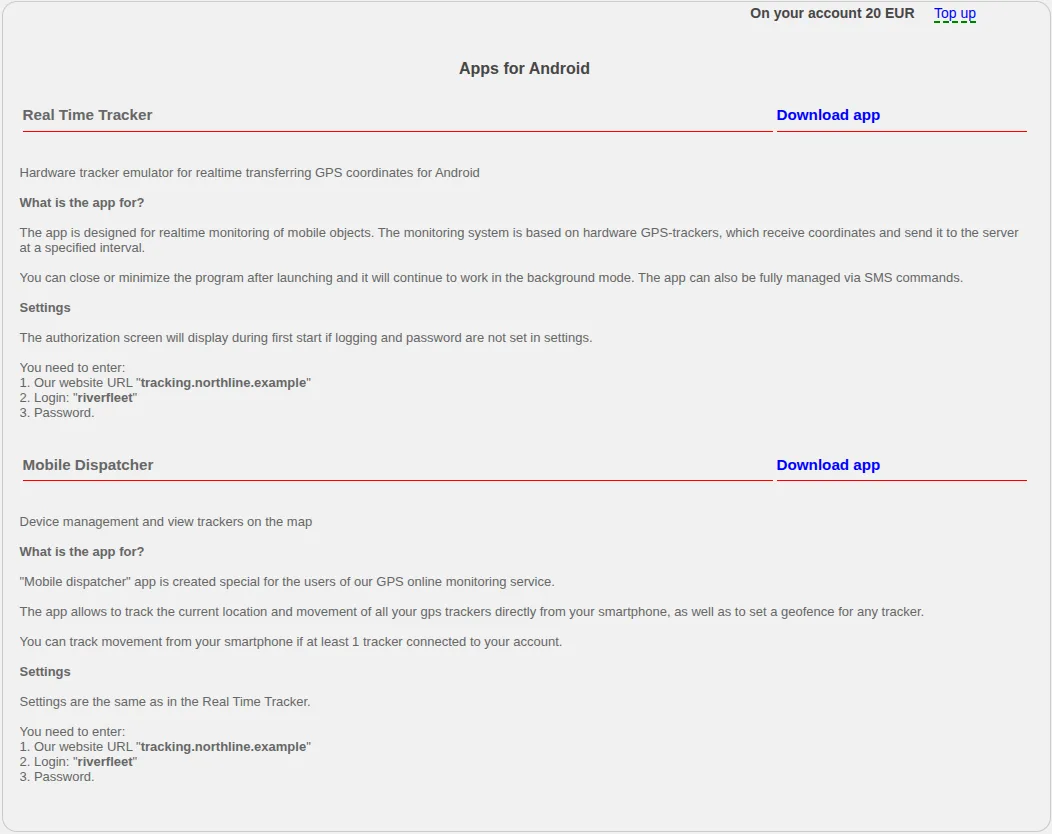
For both apps, the page shows the address of your own site, the login and the need to enter a password. Download an APK only from your hosting site.
The current page does not provide an iOS application. Do not install a third-party file with a similar name or apply Android instructions to an iPhone.
Configure RealTimeTracker
At first launch, enter the site address without accidental spaces, then the login and password. Allow location and background operation when Android requests them for coordinate transmission.
Permission names depend on the Android version. For reliable operation, check that:
- Location is enabled and available to the app while it works.
- Battery-saving rules do not prohibit background operation.
- Mobile data is allowed for the app.
- The phone date and time are correct.
- The expected object appears in the account.
Closing or minimising the app does not necessarily stop transmission: the current RealTimeTracker instructions explicitly describe background operation. To stop tracking, use the application's own control and then verify point freshness on the map.
Configure Mobile Dispatcher
Use the same hosting-site address and your account credentials. After signing in, check the device list and open one object on the map.
The dispatcher app does not turn the phone into a new tracker. Use RealTimeTracker when the phone itself must transmit coordinates.
If phone coordinates do not update
- check Android location, Internet access and background restrictions;
- verify that you entered your own hosting-site address, not an address copied from another example;
- open the app and inspect its current status;
- compare the latest point time before and after a controlled movement;
- do not reinstall the app until its settings have been recorded.
When contacting support, provide the phone model, Android version, app name, latest point time and error text. Do not send the account password.
Related articles
GPS Operator User Guide: Contents
Connect a tracker, use the live map and trip history, create reports, configure notifications and manage your GPS Operator account.
Sign-in, registration and account recovery
Sign in with an existing account, register when this option is available, confirm the account and recover access safely.
Event log
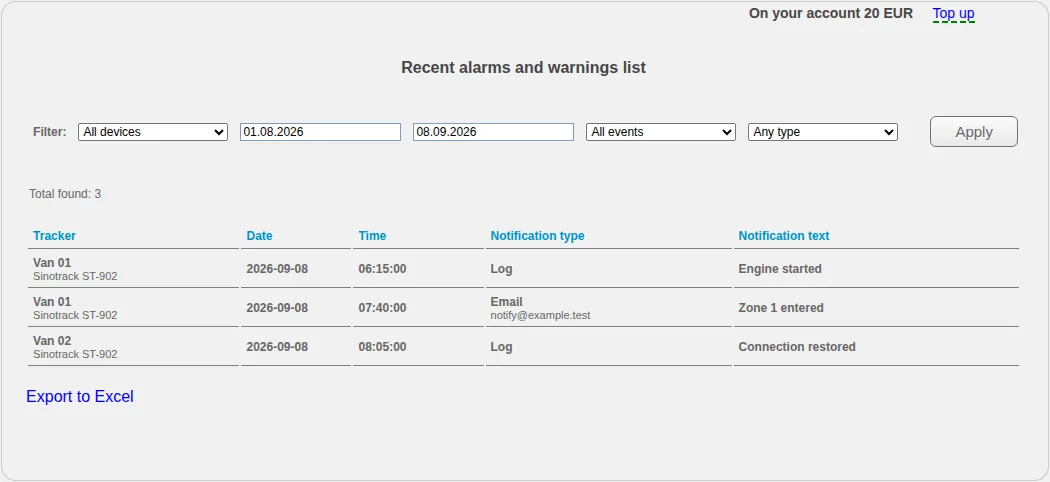
Filter recorded events by object, type and period, export the list and distinguish event recognition from notification delivery.
Getting started
Choose the right first steps for an account with a tracker already connected or for a new tracker you need to connect yourself.
Comments
Sign in to comment.
No comments yet.