One-off and scheduled reports
Create one-off or scheduled reports, follow asynchronous processing in the archive and verify objects, periods and available fields.

Reports turn stored tracker data into a ready document. The current interface provides one-off reports, four scheduled report options and an archive of generated files.
One-off report
Open Settings → Reports → One-off and set the beginning and end of the period. Three report types are available for each connected device:
- Standard report — trips, stops, mileage and main indicators;
- Fuel consumption report — calculations that require suitable sensor data or configured consumption parameters;
- Full data report — detailed stored messages and values.
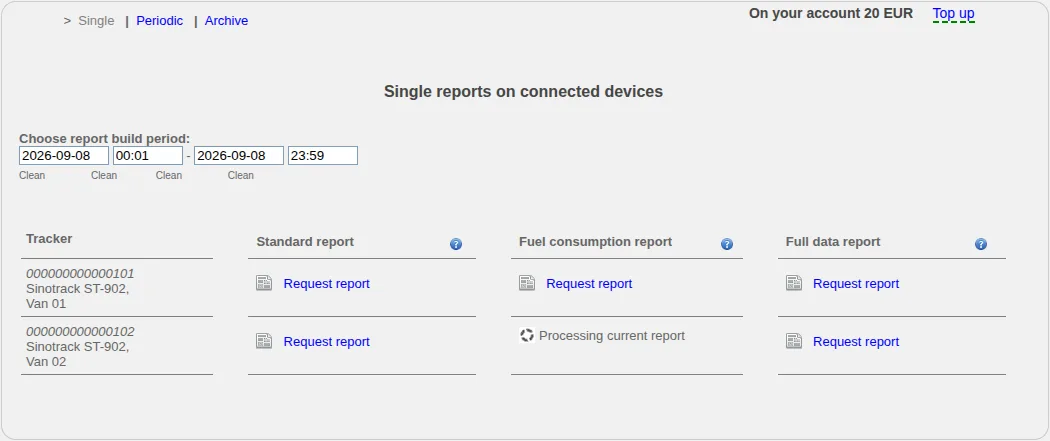
Use the row of the required tracker and order only the report that answers your question. “The current report is being processed” means that generation is already running for that cell.
Start with a short period. A report cannot reconstruct coordinates or readings that the device never sent. Movement alone is not enough for a fuel report: suitable source data is required.
Generation is not immediate. Do not submit the same request several times; open the archive and check the result there.
Scheduled reports
On the Scheduled tab, the following options can be enabled separately for each device:
- daily standard report;
- monthly standard report;
- daily fuel consumption report;
- monthly fuel consumption report.
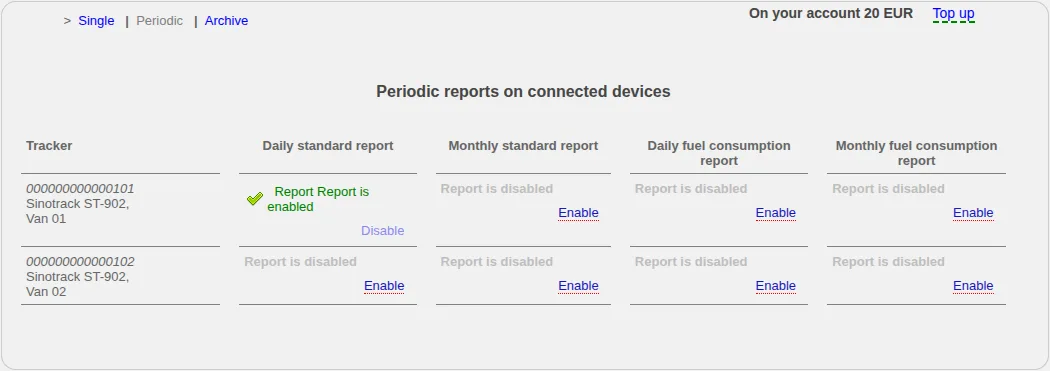
A green mark and “Report enabled” identify an active schedule. The full data report is not offered in the current scheduled-report list.
Select Enable in the required cell and complete the parameters shown by the site. Review schedules after changing a device, recipient address or workflow, and disable obsolete ones.
A scheduled report creates future documents. It does not generate missing tracker data for an earlier offline period.
Report archive
The Archive tab shows the report type, device, mileage, report dates, creation date and a link to the completed file.
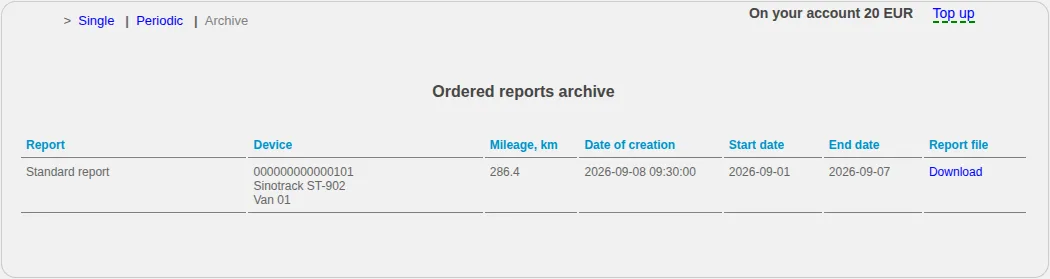
The Download link is available for a ready result. The current page selects jobs from the last 90 days and displays no more than 20 rows.
The list limit is not a guaranteed file-retention policy. Download an important document and keep it in storage you control.
Check the result
Verify the device, period, mileage and units in the document. A blank sensor field does not automatically mean zero. If a total looks unusual, open the trip history for the same device and period and compare the source points.
If the report is missing or empty:
- Confirm that the trip history contains data for the selected dates.
- Reduce the period and create one test report.
- For fuel calculations, verify that the required source data exists.
- Check the archive even if no email arrived.
- When contacting support, provide the device, report type, period and order time.
Do not delete the device or its history to regenerate a report.
Related articles
GPS Operator User Guide: Contents
Connect a tracker, use the live map and trip history, create reports, configure notifications and manage your GPS Operator account.
Sharing access and tracking links
Create individual or multi-object operator links, restrict them by password, time and history access, test them and revoke them safely.
Notification settings
Verify contacts, choose a device, event and available channel, understand immediate field saving and diagnose recognition separately from delivery.
Live monitoring on the map
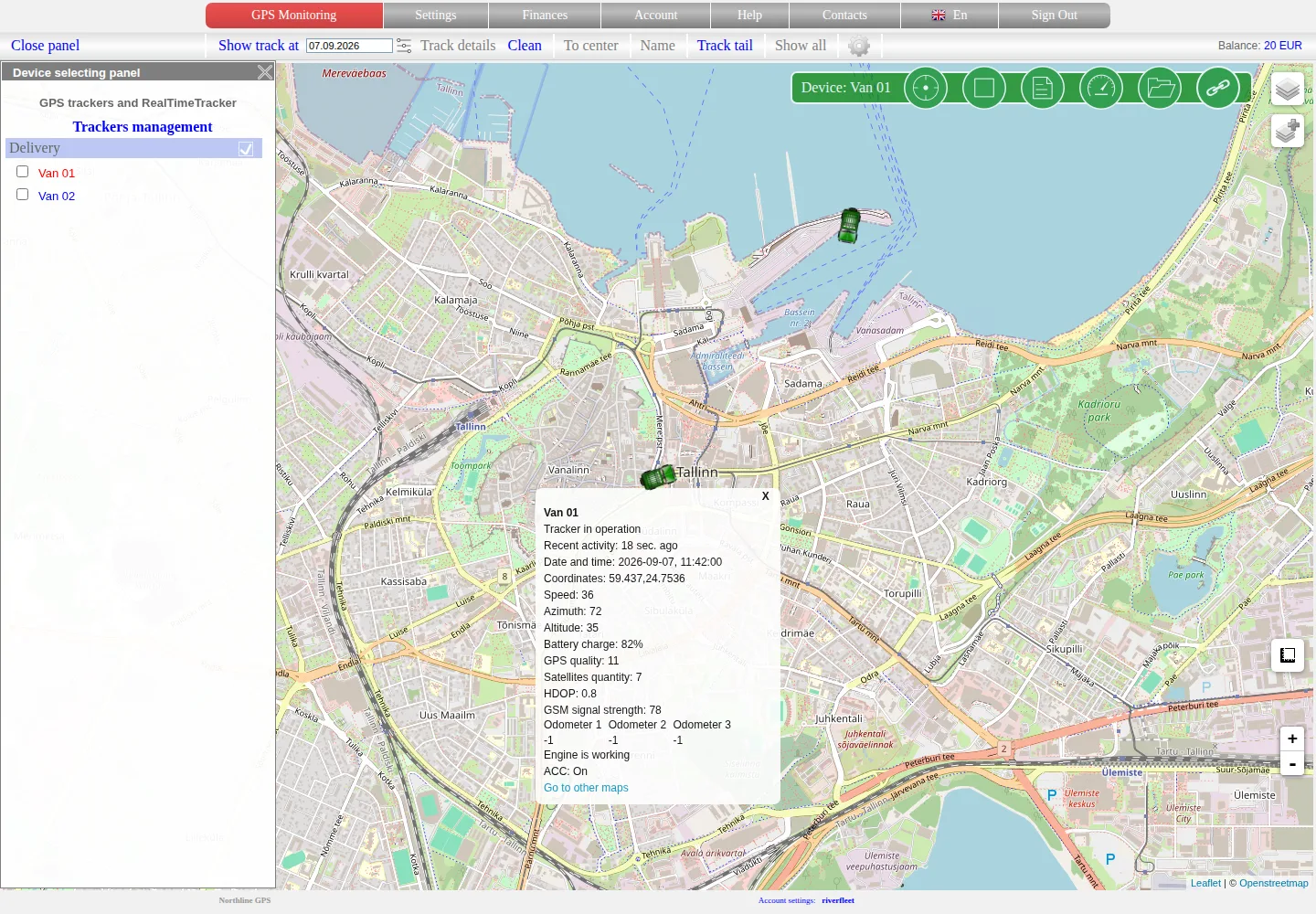
Select an object, read its latest data correctly and distinguish a fresh position, an old point and a tracker without coordinates.
Comments
Sign in to comment.
No comments yet.