Event log
Filter recorded events by object, type and period, export the list and distinguish event recognition from notification delivery.

The event log shows conditions that the service has already recognised and recorded. It helps separate rule activation from subsequent email or other notification delivery.
Find an event
Open Settings → Event log. The current form lets you select:
- one device or all devices;
- a start and end date;
- a particular event or all events;
- a notification type such as log or email.
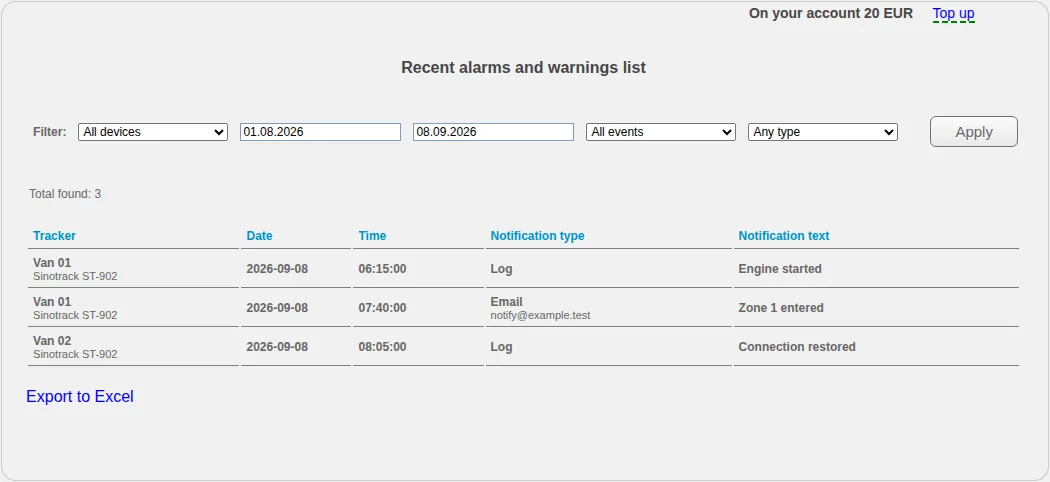
After applying the filter, the table shows the tracker, date, time, notification type and text. The same event can have separate rows for the log and a delivery channel.
Always check both dates: the initial form period can be wider than expected. Results are paginated at 30 rows, so a record from a long interval may not be on the first page.
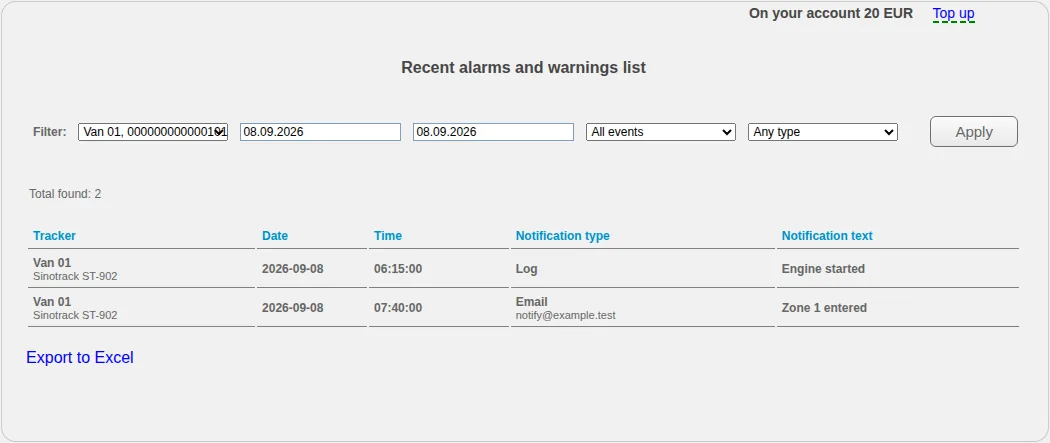
A single-tracker, single-day filter leaves only rows relevant to the check. This makes the channels used for one event easier to compare.
Read a row
First compare the device, event and time with the trip history. Coordinate time, condition-recognition time and the moment an email arrives are different stages.
If the displayed time differs from a known event, check a fresh point and the device time correction. Do not change the correction merely because an email arrived late: delivery may follow an event that was already recorded correctly.
Export to Excel
The Export to Excel link downloads the filtered list. Verify the device, dates and notification type again before using the file.
The event-log export is not a full coordinate-track export. Use trip history or a suitable report for routes and points.
The event exists but no notification arrived
A Log row proves that the event was recognised, not that a message was delivered. Then check:
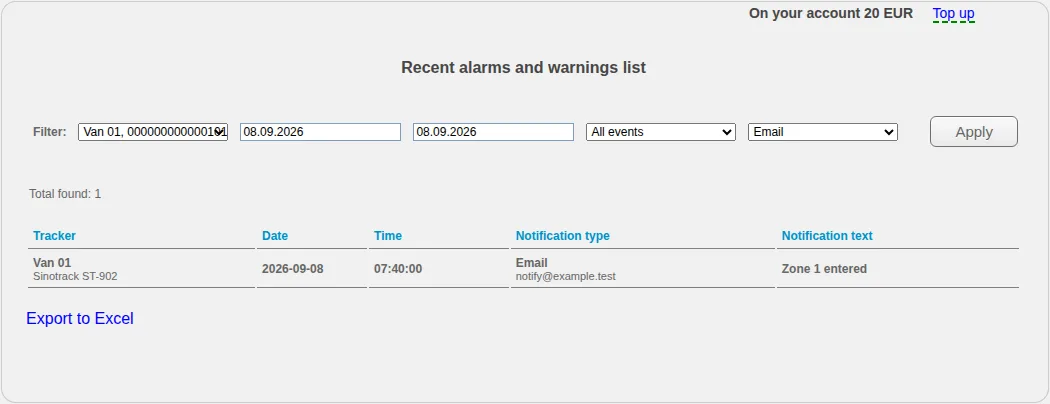
The Email filter displays the address and notification text for the corresponding delivery attempt. Export to Excel uses the selected filters.
- Whether the required channel was selected for this event.
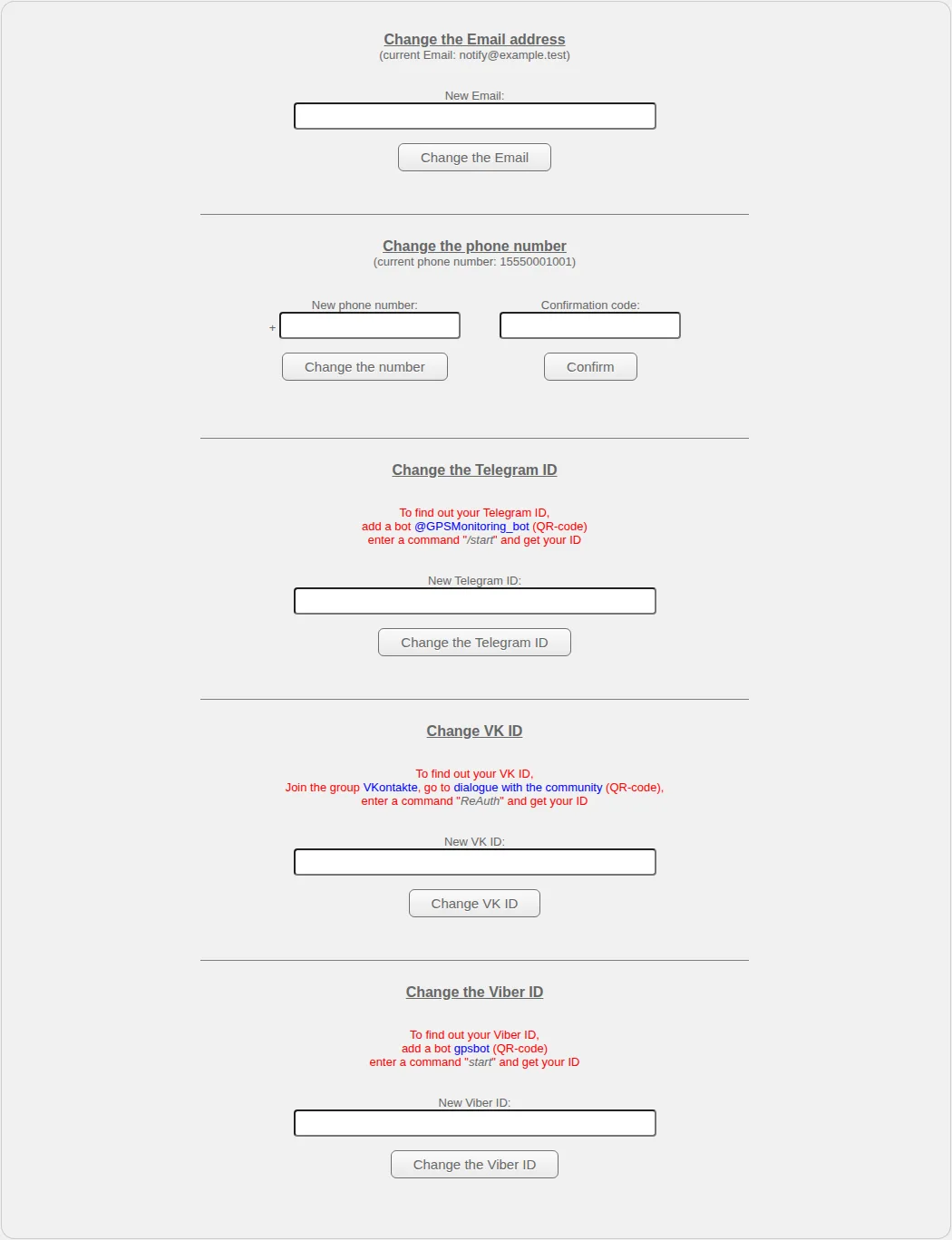
- Whether the contact is correct and confirmed.
- Whether a separate email or other channel row exists.
- The spam folder and receiving system.
- Whether the delivery channel was temporarily unavailable.
The event is missing
Reduce the date range, verify the device and event type, then compare the interval with trip history. A geofence needs suitable points around its boundary, a sensor event needs transmitted values, and a connection-loss event depends on its configured timeout.
When contacting support, provide the device name, expected event, exact interval and related point time. Do not send the account password or a complete active tracking-link code.
Related articles
GPS Operator User Guide: Contents
Connect a tracker, use the live map and trip history, create reports, configure notifications and manage your GPS Operator account.
Troubleshooting
Check sign-in, devices, coordinates, time, history, reports, notifications and payments without deleting data, resetting hardware or exposing secrets.
Notification settings
Verify contacts, choose a device, event and available channel, understand immediate field saving and diagnose recognition separately from delivery.
Account, contacts and security
Update profile and organisation details, review notification contacts, change the password and choose safer session and concurrent-login settings.
Comments
Sign in to comment.
No comments yet.