Embedded maps and external applications
Embed a restricted tracking view, use current KML or NetworkLink access, test browser and application compatibility and revoke the underlying link.

A map can be shown on your own website or opened in an external KML-compatible application. Both options use a private tracking link created in the account: its code remains a secret and controls access.
Create a restricted link first
Open Settings, find the device and select Add a link. For a regular link, enter a clear description, a separate password and the shortest required period. Disable historical track viewing when it is not needed.
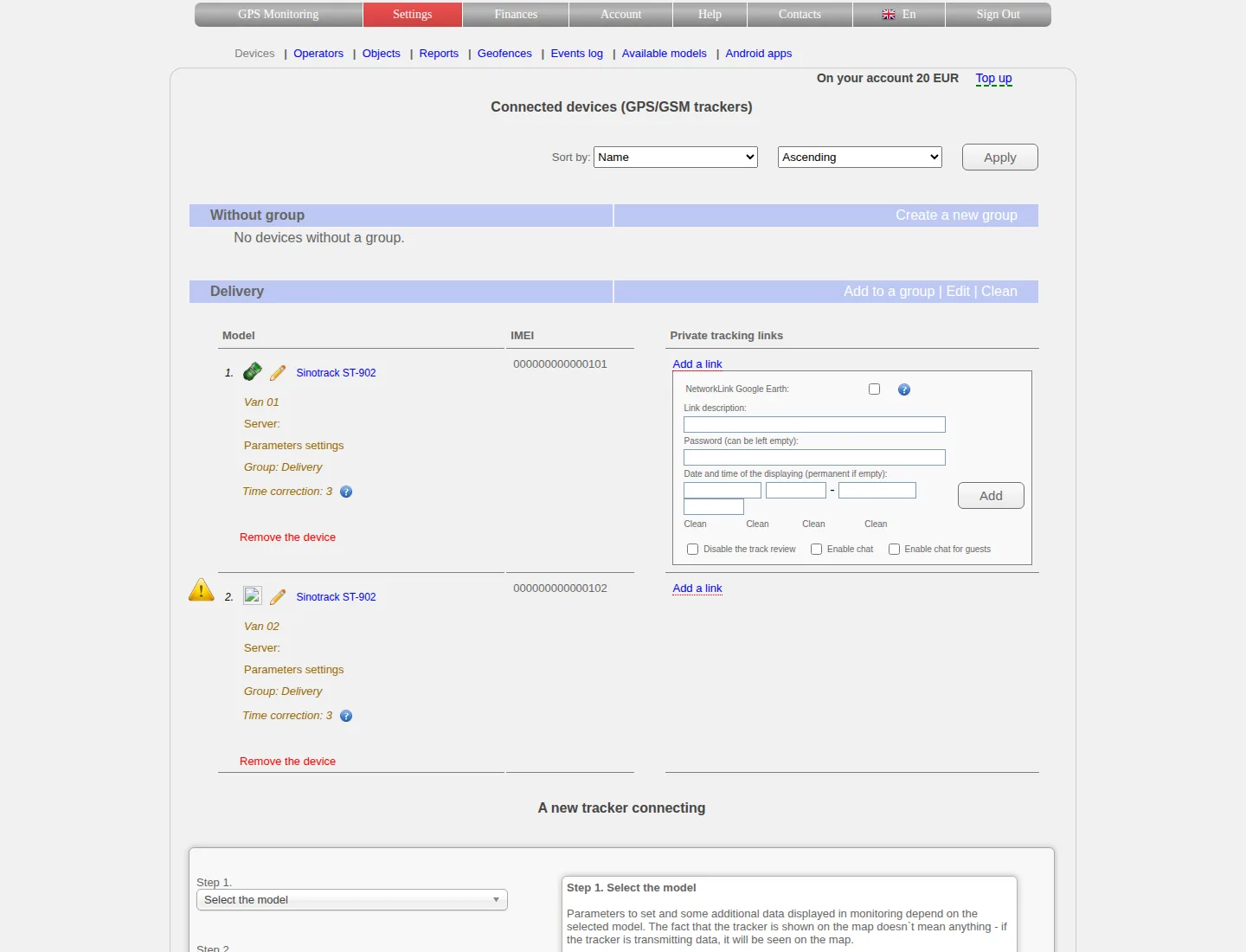
Empty period boundaries make access permanent. The link password must not be the same as the account password.
Save the link and open it in a private window first. Verify the object, period, password prompt and history access. Only then share or embed it.
NetworkLink for a KML application
When an updating source is required for Google Earth or another compatible application, enable NetworkLink Google Earth while creating the link.
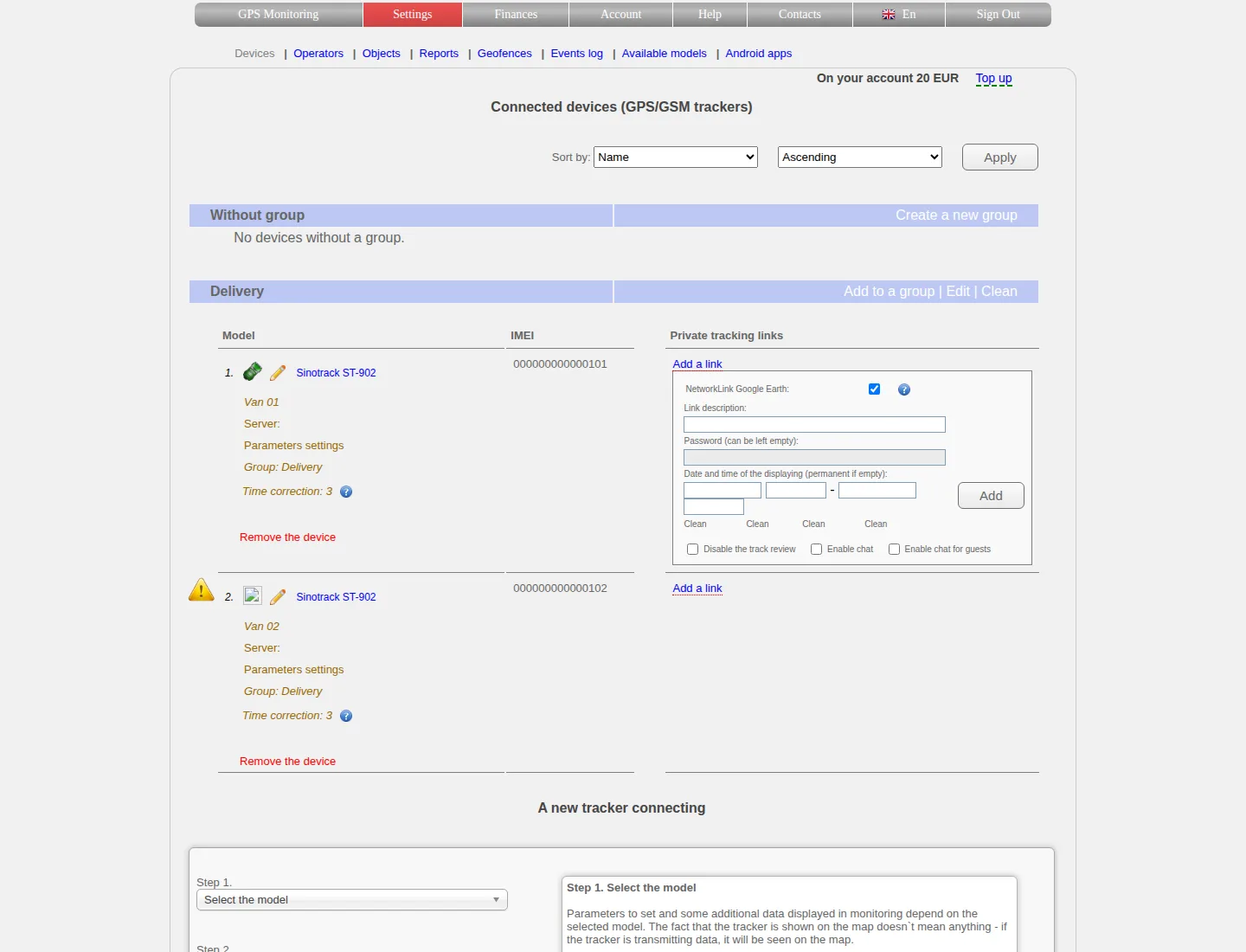
The current form does not combine NetworkLink with a password: enabling the checkbox disables and clears the password field. Protect this access with URL secrecy and a limited period.
After saving, use the NetworkLink address issued by the site in the KML-compatible application. The current server NetworkLink requests updates at 10-second intervals, although actual coordinate freshness still depends on the tracker.
Do not publish the NetworkLink file or URL on a public page. Importing it into an application copies access to the link; it does not create a separate account user or grant access to settings.
HTML code for your website
Use the HTML-code icon beside a saved link. The interface creates a ready iframe containing the tracking-page address.
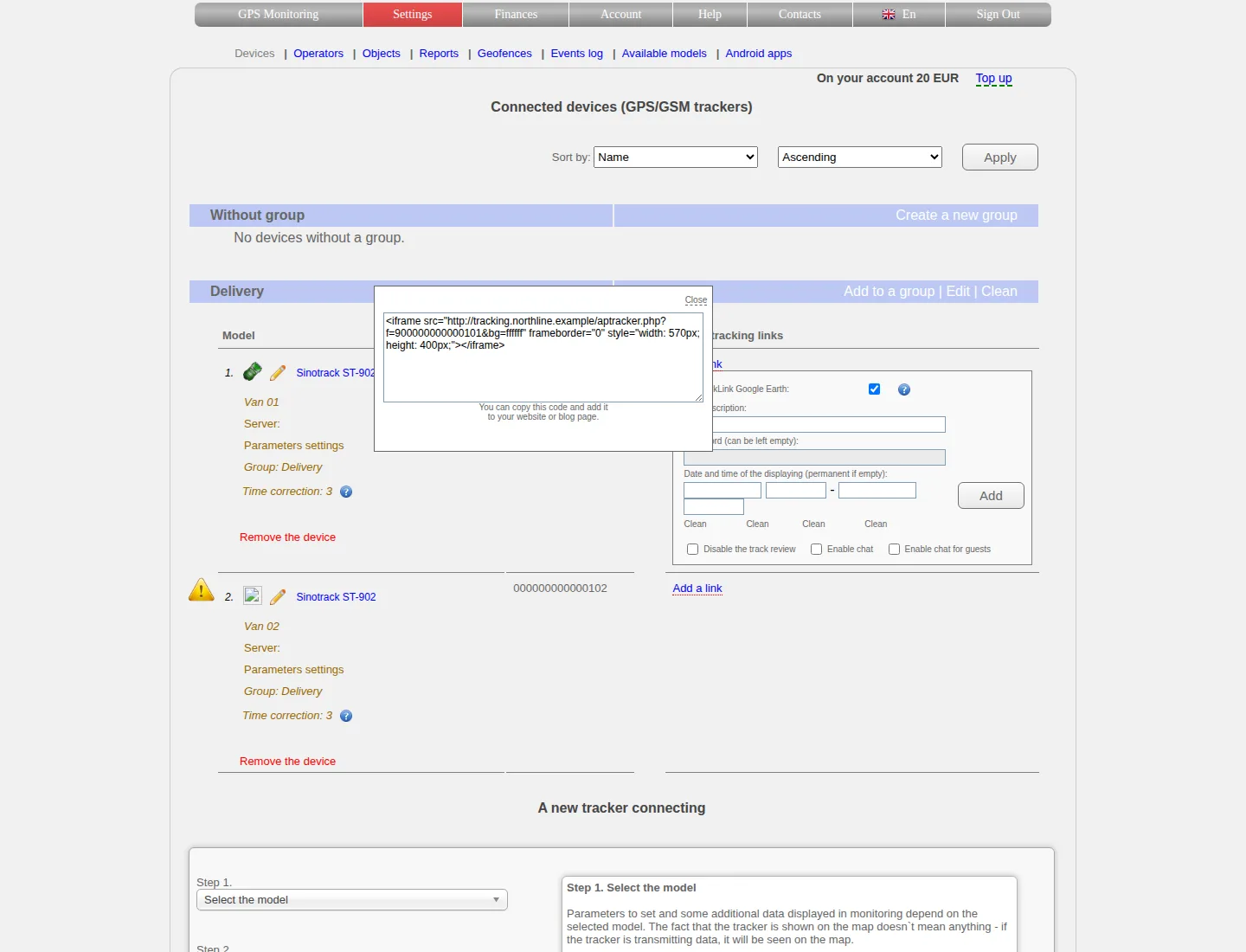
Copy the complete code without changing the secret link parameter. The width and height values can be adapted to the page without altering the src address.
Paste the code into page HTML or an allowed CMS block. If the main site uses HTTPS, the embedded address must also use HTTPS, otherwise the browser can block mixed content.
Test the result in a private window and on a narrow screen. Confirm that only the intended object is visible and that account settings, finances and other devices cannot be opened.
Revoke access
An embedded map and NetworkLink work while their underlying private link remains valid. To revoke access:
- Delete that exact link in the device settings.
- Test the old URL in a private window.
- Clear the external application or page cache if old data remains visible.
- If required, create a new link with a new code and update the embed.
Changing the account password, renaming the device or removing an iframe from only one page does not guarantee revocation of the source link.
If an external application stops updating, first open the URL in a browser, check its validity period and point freshness, and then inspect the application's refresh settings. Provide support only with a masked link code.
Related articles
Comments
Sign in to comment.
No comments yet.