Device settings and management
Rename devices, choose icons and correct displayed time, understand service restrictions and distinguish disabling from deleting a tracker.

Use Settings to identify each tracker clearly and review its service state. Changing the object name or icon affects how it appears in your account; it does not change the tracker identifier or reconfigure the physical device.
Find the device settings
- Sign in and open Settings.
- Open the section for connected GPS/GSM trackers.
- Find the device by its object name, model and identifier.
- Check its service warning before changing anything.
The device identifier is the value sent by the tracker. In the current interface it cannot be edited after connection. The display name, icon and time correction are separate settings.
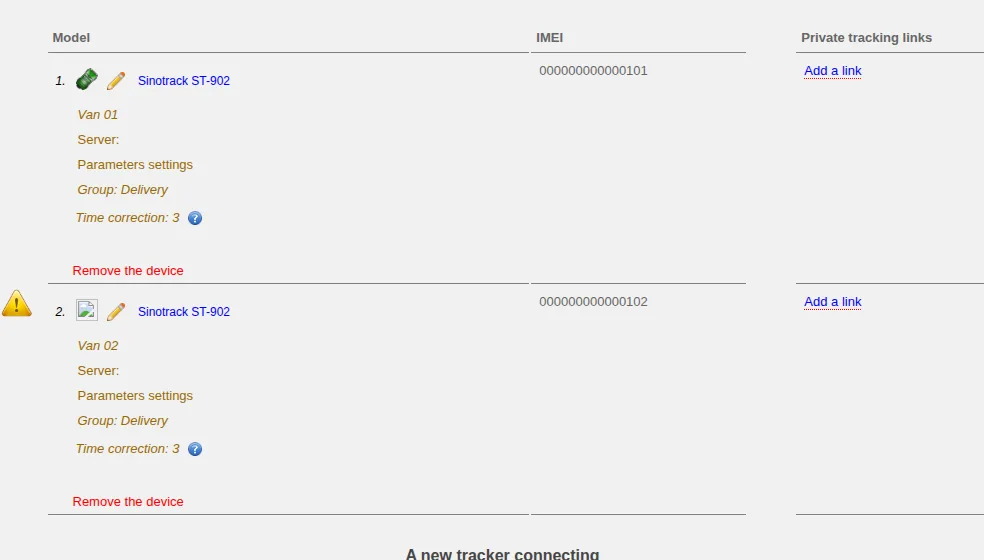
The display name, group and time correction are editable account settings. The tracker identifier remains the fixed reference for the physical device; the warning triangle marks restricted service.
Change the display name
Select the current object name, enter a clear replacement and confirm it. Use a name that operators can distinguish quickly, such as Van 01, rather than another IMEI or a driver's password.
The new name is used in the map, reports and device lists. Renaming an object does not move its stored points to another tracker and does not change the identifier configured in the device.
Choose an icon
Open the icon selector beside the device and choose the symbol that best represents the object. Confirm the selection and then check the object on the live map.
An icon is only a visual aid. It does not define the vehicle type, enable a sensor or change how the tracker sends data.
Correct the displayed time
Use this setting only when a point time on the map differs from the actual time. Compare the displayed value with an event whose time you know, then enter a correction for the observed difference. After saving, always check the time of a new point.
This is not a time-zone selector. Some trackers transmit UTC while others already transmit local time, so do not automatically enter your region's UTC offset. If the displayed time is correct, leave the correction unchanged.
The correction changes the displayed time for this device only; it does not set the clock inside the tracker. If the difference becomes larger or the time appears to be shifted twice, restore the previous value and calculate the correction again from the observed difference.
Model-specific settings
Some devices show additional configuration, commands, sensor fields or server selection. Their availability depends on the exact model, plan and service configuration.
Change only settings whose meaning is documented for your model. Do not copy values from another tracker simply because its form looks similar. A missing control is not an error and must not be replaced with a setting from another website.
If service is restricted
An inactive device is marked with a warning. Monitoring, history, reports, links or other functions can be limited for it.
Open the warning and read the current conditions shown in your account. Reactivation may require sufficient balance and may show a charge before confirmation. Check the device, amount, account currency and service period before accepting it. Do not rely on a price from this guide or an old screenshot.
Test devices have separate conditions and may not support all history or sharing functions. Their state is not the same as a paid device temporarily restricted for insufficient funds.
Disable and delete are different
Disabling or restricting service leaves the device listed with a warning. Deleting a device starts a separate removal operation and can make its settings and history unavailable. Removal may remain in progress for a while, during which the same identifier cannot necessarily be added again.
Before deletion:
- Verify the exact object and identifier.
- Export any history that you are required to retain.
- Remove or review tracking links, reports, proximity rules and other settings that refer to the object.
- Read the confirmation and contact us if the consequences are unclear.
Deleting a device is not a troubleshooting step. Do not use it to fix missing coordinates, a blank map or a temporary communication problem. Also do not confuse it with deleting selected historical points from the map.
Stationary objects
When the Objects section is available, you can add stationary items that need to appear on the map, such as a depot or fixed equipment. A stationary object is not a physical GPS tracker and does not send a moving track.
Depending on the service configuration, it can be displayed as a separate map layer or used as the centre of a proximity rule. Use a clear name and verified coordinates. Do not create a stationary object as a substitute for a tracker that has stopped reporting.
If a change does not appear
- refresh the device list and open the live map again;
- confirm that you edited the intended object;
- check whether the account or device is restricted;
- allow an in-progress removal to finish instead of adding the same identifier repeatedly;
- contact us with your login, object name, model, identifier and the action you attempted.
Do not send your account password, SIM PIN/PUK or unrestricted tracking links.
Related articles
GPS Operator User Guide: Contents
Connect a tracker, use the live map and trip history, create reports, configure notifications and manage your GPS Operator account.
Getting started
Choose the right first steps for an account with a tracker already connected or for a new tracker you need to connect yourself.
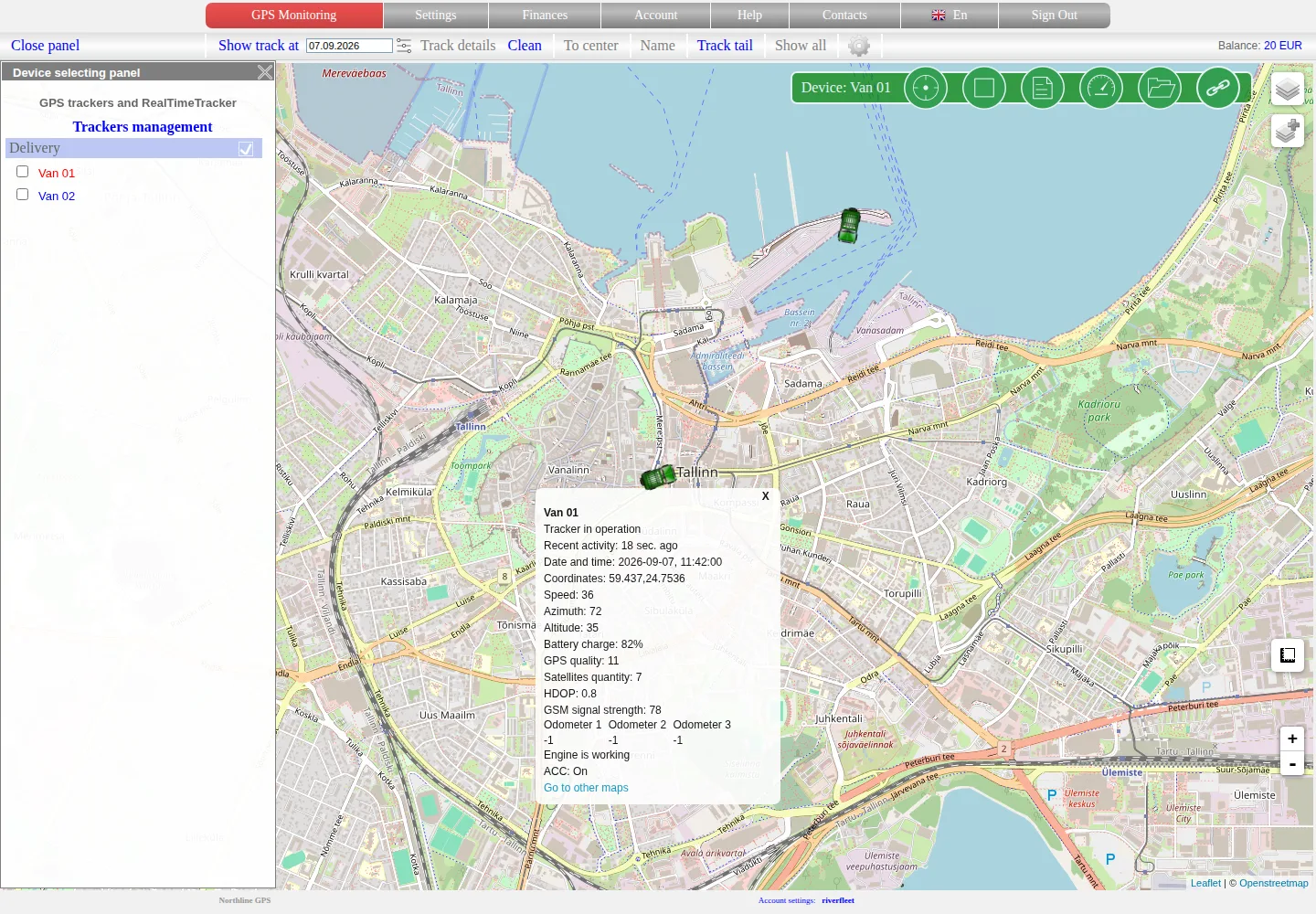
Live monitoring on the map
Select an object, read its latest data correctly and distinguish a fresh position, an old point and a tracker without coordinates.
Device groups and sorting
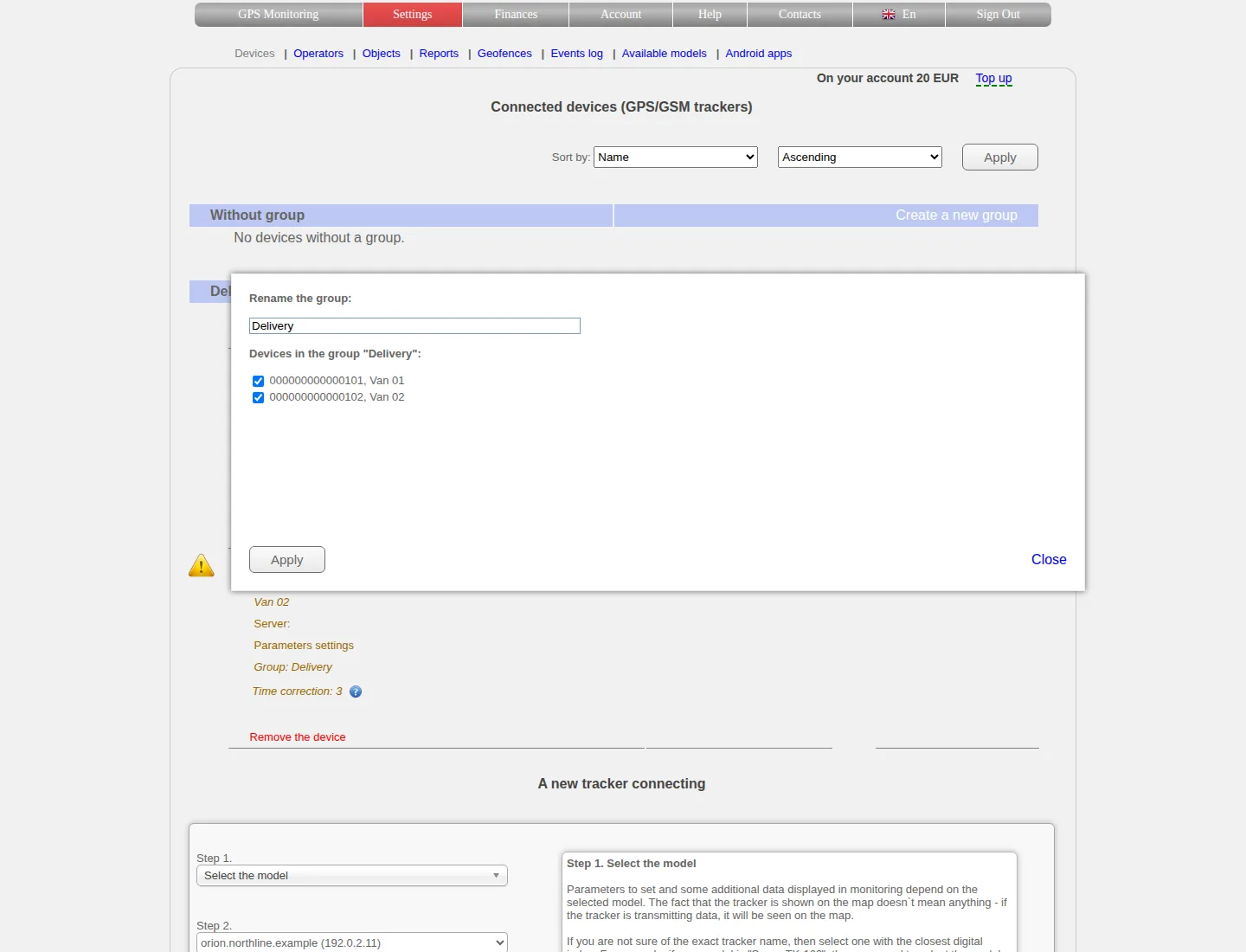
Create and rename groups, move devices between them, understand list order and keep grouping separate from access permissions.
Comments
Sign in to comment.
No comments yet.