Analysing, exporting and deleting history
Replay a stored trip, compare speed and available sensor values, choose an export format and treat history deletion as a separate destructive action.

After building a historical track, use the map tools to inspect movement, compare available measurements and download the interval. Exporting creates a separate file; deleting history is a different, destructive action.
Replay the trip
Select one device and build a one-day or multi-day history first. When playback controls are available, start from the beginning and use the speed control to follow the recorded sequence.
Playback moves through stored points. It does not recreate movement between missing points and does not turn a calculated line into a continuous recording.
Analyse speed and sensor values
Open the speed or analysis panel after the track is built. Depending on the device, data and plan, you may see speed, altitude, battery, ignition or other supported values.
Compare a suspicious value with neighbouring points and its timestamp. A single spike can be a positioning or sensor anomaly. A field that is absent from the panel was not necessarily zero; it may not have been supplied or supported.
Understand display filters
The history settings can include base-station positions, point filtering and smoothing. These options change how the requested track is selected or drawn. Treat them as analysis settings, not as proof that the source data has been corrected permanently.
If a result matters, compare the filtered and unfiltered views. Record which options were used when sharing a conclusion.
Choose an export format
Open the export panel after building the required interval. The current interface offers:
- KML standard for a simpler geographic view;
- KML extended for additional available track information;
- PLT for compatible track software;
- GPX for applications that accept GPS exchange files;
- CSV for table-based analysis.
Availability and exact fields depend on the selected interval and stored data. Open the downloaded file before relying on it, and keep the original if it is needed for an audit. A third-party application can interpret colours, times or optional fields differently.
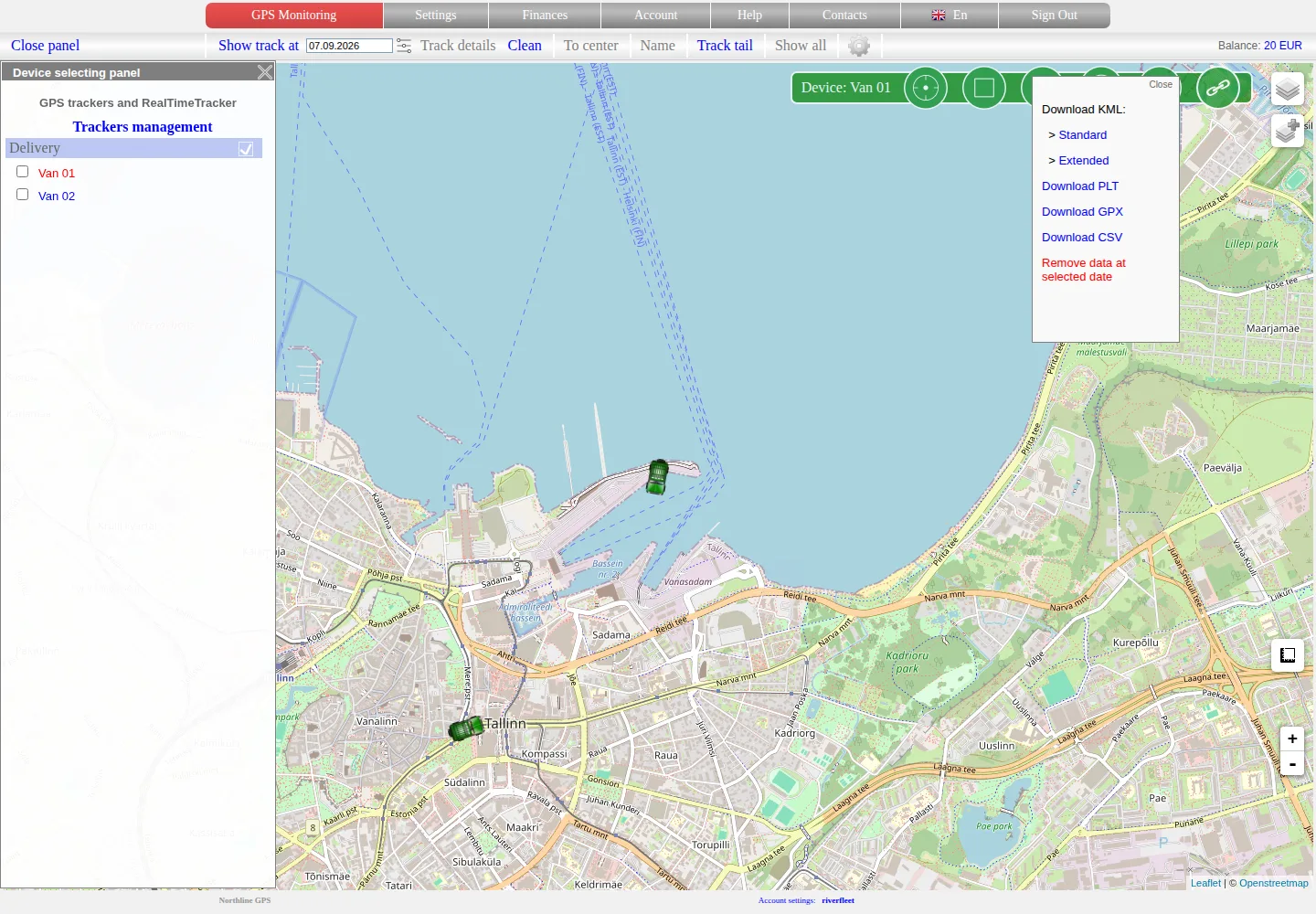
Export offers several file formats. The red one-day deletion action is separate from downloading and must not be used as a troubleshooting step.
Deleting selected history
Deletion is not part of export. In the current account interface it is exposed only for an owned device and a selected one-day history, with a separate warning. Multi-date deletion must not be inferred from the multi-date viewer.
Before confirming deletion:
- verify the object and date;
- export the data you must retain;
- check whether reports, investigations or shared links depend on it;
- read the confirmation carefully.
Deleted coordinates may not be recoverable. Do not delete history to fix a visual jump, missing data or an incorrect time zone. First compare the source interval and contact us if the cause is unclear.
If export does not work
- rebuild a shorter interval and wait for it to finish;
- allow downloads and check the browser's download list;
- try another supported format;
- verify that the selected device permits historical access;
- tell us the object, interval, format and browser error without sending an unrestricted tracking link.
Related articles
GPS Operator User Guide: Contents
Connect a tracker, use the live map and trip history, create reports, configure notifications and manage your GPS Operator account.
Trip history
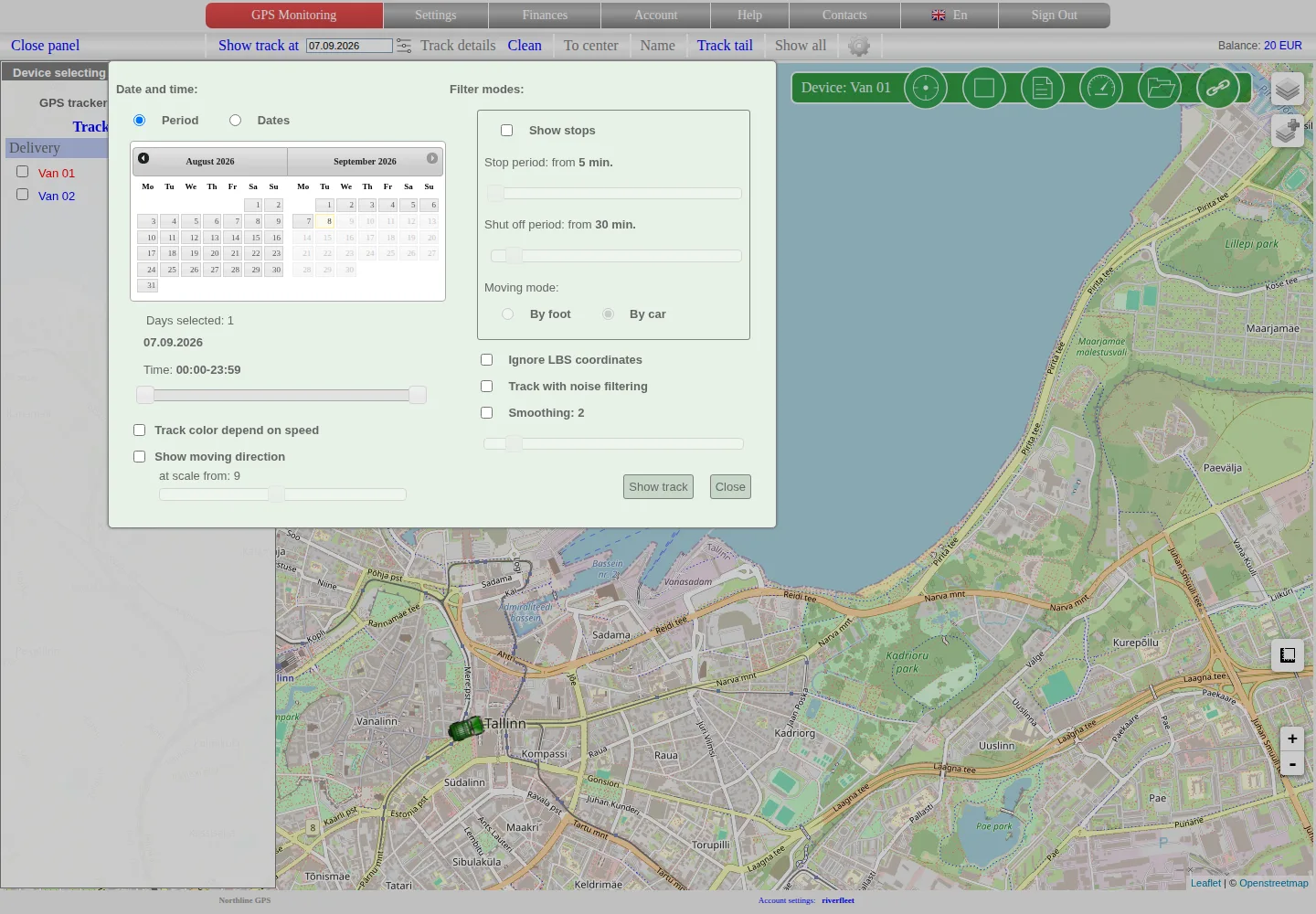
Select a device, date mode and time range, build its stored track and interpret calculated stops and multi-day limitations correctly.
Device groups and sorting
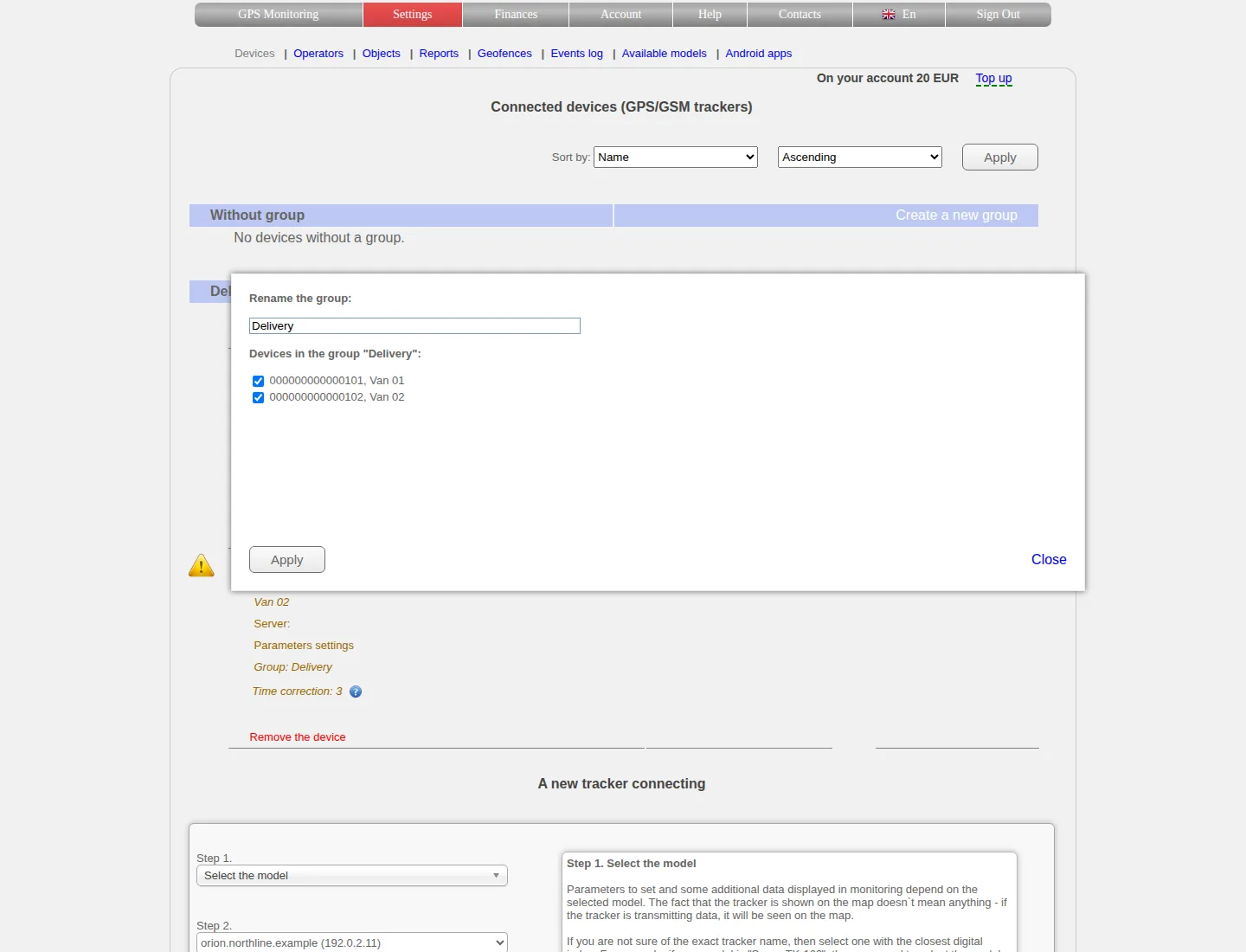
Create and rename groups, move devices between them, understand list order and keep grouping separate from access permissions.
Comments
Sign in to comment.
No comments yet.